


Introduction: The End of Drag-and-Drop Frustrations
As a software architect and technical writer, I have spent countless hours wrestling with traditional diagramming tools. You know the drill: dragging misaligned boxes, dealing with broken connector lines, and facing the absolute nightmare of version-controlling binary image files. Recently, the “Diagram as Code” movement has offered a lifeline, allowing engineers to define visual structures using plain text.
Eager to find a unified solution that didn’t require complex local environment setups, I decided to test drive VPasCode (Visual Paradigm as Code). Marketed as a browser-based, multi-engine text-to-diagram platform with deep AI integration, it promised to eliminate the friction from technical visual documentation. After spending a few weeks putting its features, workflows, and brand-new AI transparency tools through their paces, here is my comprehensive, third-party review of the platform.
🎨 First Impressions and Core Features
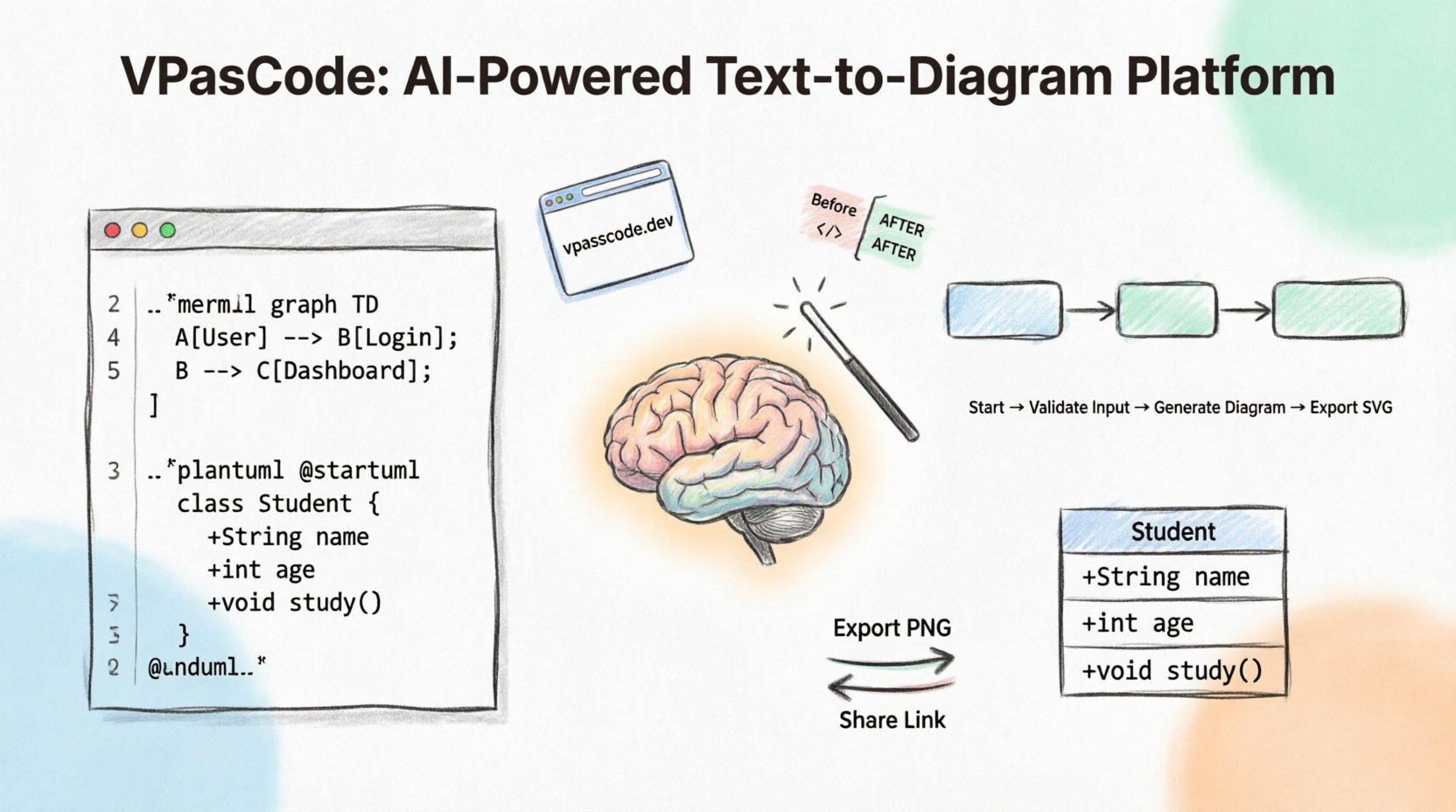
Right out of the gate, what struck me most about VPasCode is how it unifies multiple open-source diagramming standards into a single, seamless environment. Rather than forcing me to switch between different web apps for different diagram types, it provides a centralized hub.
Here are the standout features from my testing:
-
Multi-Engine Syntax Support: I was able to seamlessly toggle between PlantUML (which I used for heavy enterprise architecture and C4 models), Mermaid.js (perfect for quick markdown sequence flows), and Graphviz (ideal for infrastructure pipelines).
-
Zero-Setup Browser Workspace: This was a massive relief. I didn’t need to install local Java environments, configure Graphviz binaries, or manage npm dependencies. It runs entirely in the browser, meaning I could jump into a diagramming session from any machine instantly.
-
Two-Column IDE-Grade Editor: The workspace features an adjustable split-view layout. The left side acts as a robust code editor with line numbering and live error counts, while the right side offers a real-time, responsive vector canvas. It feels exactly like using VS Code.
-
Built-in AI Assistant: The AI integration isn’t just a gimmick. I used the conversational chatbot to generate baseline code frameworks from raw text prompts, auto-fix broken brackets, and even translate diagram labels on the fly.
-
High-Quality Exporting & Sharing: When it was time to present my work, I could export resolution-independent SVGs for web layouts, high-res PNGs for slide decks, or generate a persistent shareable URL to send to my team.
-
OpenDocs Pipeline Integration: For long-term documentation, I loved the ability to send active diagrams directly to an OpenDocs Dashboard Workspace Pipeline, embedding live, updatable visual models directly into team manuals.
🚀 My Step-by-Step Workflow
Getting started was incredibly intuitive. Here is the exact workflow I followed to build and share my diagrams.
Step 1: Open the Workspace
I navigated directly to the VPasCode web tool. There was no initial download or mandatory account setup required just to load the empty code editor sandbox and start typing.
Step 2: Choose Your Syntax Engine
On the left editor panel, I selected my preferred engine toggle depending on the specific project I was tackling:
-
I chose PlantUML when I needed to map out detailed architecture, use cases, and database relations.
-
I switched to Mermaid.js when I was writing markdown documentation files and needed quick sequential flow charts.
Step 3: Write or Generate Code
I utilized two distinct methods to input my structural text syntax:
-
Manual Entry: For precise, pre-planned structures, I typed out my syntax (like
@startumland@endumlblocks) directly into the script canvas. -
AI Generation Prompt: When I was stuck or needed a quick boilerplate, I clicked the built-in AI Assistant icon and typed prompts like, “Generate a library system where members can borrow or reserve books.” The chatbot instantly constructed a highly accurate baseline syntax block for me to refine.
Step 4: Preview and Fine-Tune
Watching the right-side preview canvas compile my script instantly with every line I typed was incredibly satisfying. I kept an eye on the bottom status bar for continuous syntax checking. Whenever I accidentally deleted a connector or missed a bracket, I simply clicked the AI Auto-Fix prompt to resolve the errors instantly.
Step 5: Export and Share
Once my visual layout was complete, I used the floating canvas control toolbar to select my delivery method. I exported SVGs for our web docs, generated persistent URL links to drop into our team Slack channels for joint code refinement, and routed packaged diagram elements cleanly into our cloud documentation base via the OpenDocs Pipeline.
Transparency Meets Learning: Reviewing the “AI Fix Details” and Code Diff
While the core diagramming experience is fantastic, the feature that truly won me over as a developer is the brand-new “AI Fix Details” panel.
When automated tools fix our code, it often feels like magic—but engineers need to know exactly what is changing under the hood. We hate when software edits our work unpredictably. Visual Paradigm recently rolled out a major enhancement to their troubleshooting workflow: a side-by-side code diff component accompanied by natural language reasoning.
The Upgraded Workflow in Action
The core functionality remains seamlessly fast, but I now have complete visibility over my code modifications. Here is how the upgraded workflow played out during my review:
-
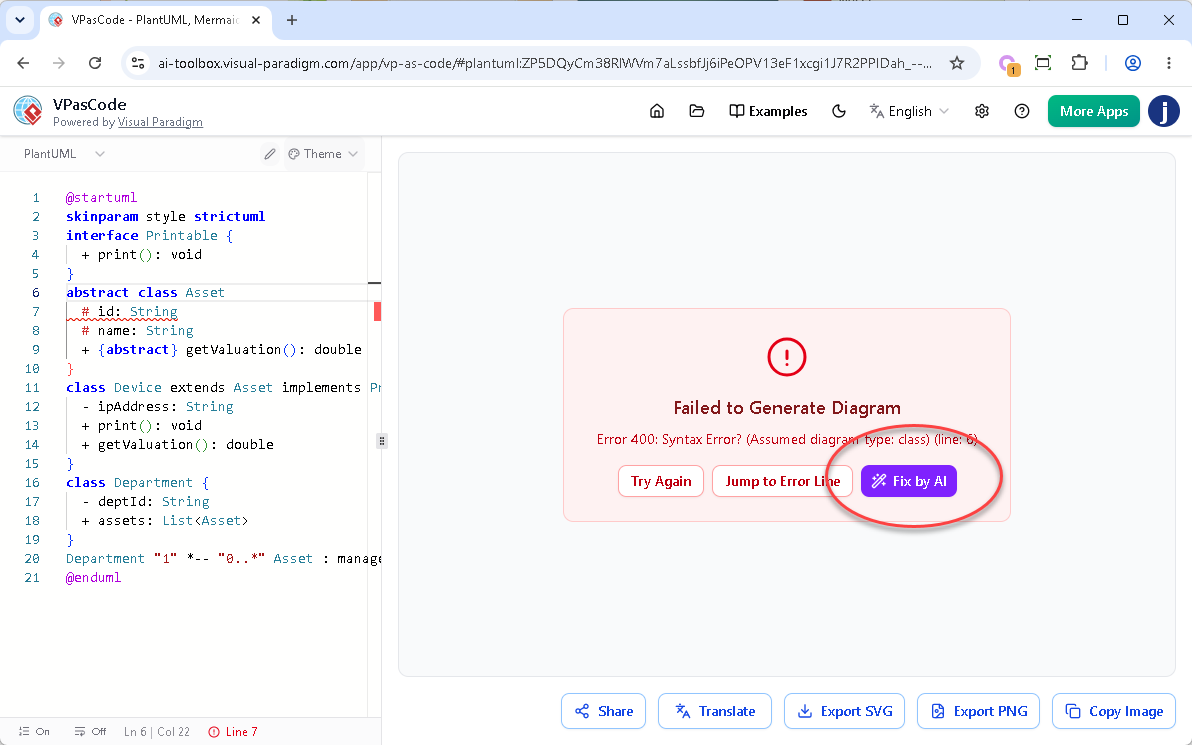
The Fix: When I hit “Fix by AI”, the engine instantly repaired my syntax, cleaned up the script, and rendered my diagram.
-
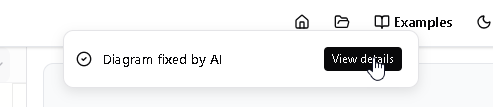
The Notification: Simultaneously, a sleek notification banner appeared at the top of my screen displaying the message: “Diagram fixed by AI”.
-
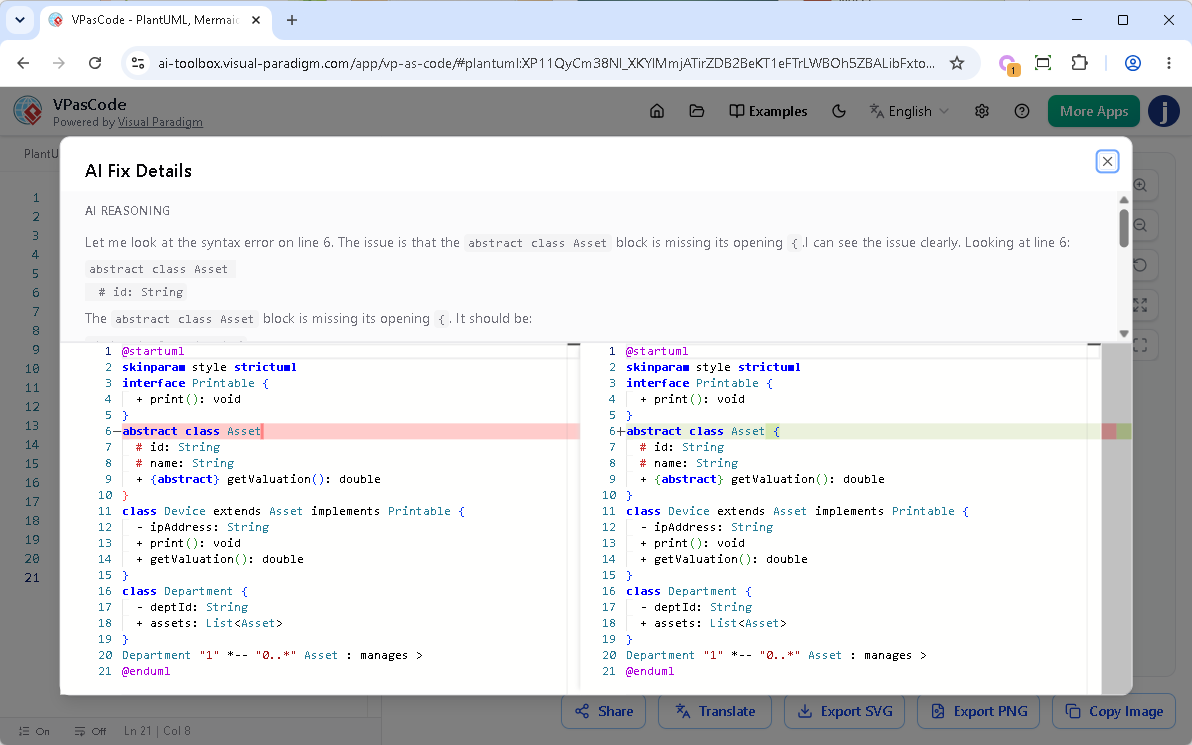
The Reveal: To the right of that banner, I found a “View details” button. Clicking this opened a comprehensive popup dialog box detailing the exact changes made to my project.
Try It Yourself
You can test this exact enhancement using the problematic PlantUML code below. Notice the missing opening bracket { on the abstract class Asset line. Click the link to open VPasCode and watch the AI repair it transparently.
@startuml
skinparam style strictuml
interface Printable {
  + print(): void
}
abstract class Asset
  # id: String
  # name: String
  + {abstract} getValuation(): double
}
class Device extends Asset implements Printable {
  - ipAddress: String
  + print(): void
  + getValuation(): double
}
class Department {
  - deptId: String
  + assets: List
}
Department "1" *-- "0..*" Asset : manages >
@enduml
Corrected Version (AI Fix)
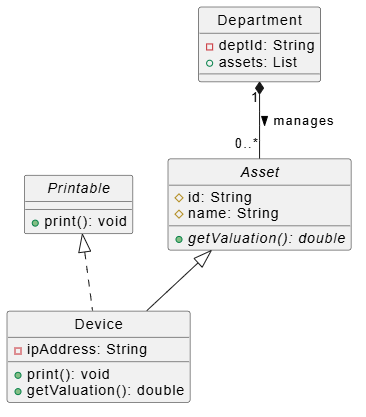
@startuml
skinparam style strictuml

interface Printable {
  + print(): void
}

abstract class Asset {
  # id: String
  # name: String
  + {abstract} getValuation(): double
}

class Device extends Asset implements Printable {
  - ipAddress: String
  + print(): void
  + getValuation(): double
}

class Department {
  - deptId: String
  + assets: List
}

Department "1" *-- "0..*" Asset : manages >
@enduml
Inside the AI Fix Details Dialog
The new dialog box is cleanly divided into two highly informative sections that I found incredibly useful:
-
Upper Part (AI Reasoning): A plain-English explanation generated by the AI detailing exactly what syntax issue it discovered (e.g., locating the missing bracket on a specific line) and how it approached the solution.
-
Lower Part (Code Diff Component): A precise, side-by-side comparison of my code block before and after the modification. Red highlights marked the broken sections on the left, while green highlights cleanly called out the repaired syntax injected on the right.
Why This Enhancement is a Game-Changer for Me
-
Absolute Trust and Control: The code diff gives me total peace of mind. It proves that the AI is safely targeting the exact syntax error without making arbitrary, unexpected, or unneeded changes to my underlying business logic.
-
Interactive Learning on the Go: Syntax rules across PlantUML, Mermaid, and Graphviz can get confusing. By reading the AI’s plain-text reasoning and seeing the visual diff, the platform transforms from a simple editor into an active learning tool, helping me master subtle syntax nuances.
-
Effortless Auditing and Quick Reversals: When managing large diagrams, figuring out what tiny code modification changed a structural layout is difficult. Knowing exactly what changed and where allows me to easily audit modifications or manually revert specific choices if my original intent differed from the AI’s syntax correction.
Conclusion: Is VPasCode Worth It?
After thoroughly testing VPasCode, I can confidently say it bridges the gap between developer-centric “code-first” workflows and the visual requirements of enterprise architecture. The elimination of local dependencies combined with an IDE-grade editor makes it an incredibly sticky tool for daily use.
However, it is worth noting that while the basic sandbox is free to try, the enhanced AI Fix Details dialog and premium AI features are seamlessly integrated into the existing AI Code Error Fixing tool, which requires a premium account (such as the Visual Paradigm Online Combo Edition or Visual Paradigm Desktop Professional Edition with active maintenance).
For teams looking to modernize their engineering documentation, eliminate drag-and-drop fatigue, and leverage AI without sacrificing code transparency, VPasCode is an absolute must-try. Stop guessing what broke your script, and start creating freely.
Try it now at: https://www.vpascode.com/editor/
References & Further Reading
- VPasCode Features Overview: Official feature overview of Visual Paradigm’s unified text-to-diagram platform.
- Introducing VPasCode: The Ultimate Unified Text-to-Diagram Platform: Release notes and introduction to the VPasCode browser workspace.
- Comprehensive Guide to VPasCode by Visual Paradigm: A complete walkthrough and user guide for mastering VPasCode.
- VPasCode: Revolutionizing Engineering Documentation with Diagram as Code: Third-party review on how VPasCode transforms technical documentation.
- From Prompt to Pattern: Mastering UML Class Diagrams with AI: Guide on using AI prompts to generate UML class diagrams in VPasCode.
- Revolutionizing Diagram Maintenance: AI Auto-Fix: Overview of VPasCode’s AI syntax repair and auto-fix capabilities.
- Break Language Barriers Natively with VPasCode’s AI Diagram Translation: Release update covering the new multi-language translation feature for diagram labels.
- Mastering VPasCode: The Ultimate Guide to AI-Powered Diagram as Code: Advanced guide covering multi-engine support including PlantUML, Mermaid, and Graphviz.
- Seamlessly Connect Diagramming to Documentation: OpenDocs Integration: Update detailing the OpenDocs Pipeline integration for embedding live diagrams.
- Mastering Use Cases: From Concept to Implementation: Tutorial on building use case diagrams using the diagram-as-code approach.
- Mastering AI-Enhanced Use Case Modeling: A Beginner’s Guide: Beginner-friendly guide to combining AI with PlantUML for use case modeling.