
Mastering VP OpenDocs: Embedding Live Visual Paradigm Diagrams
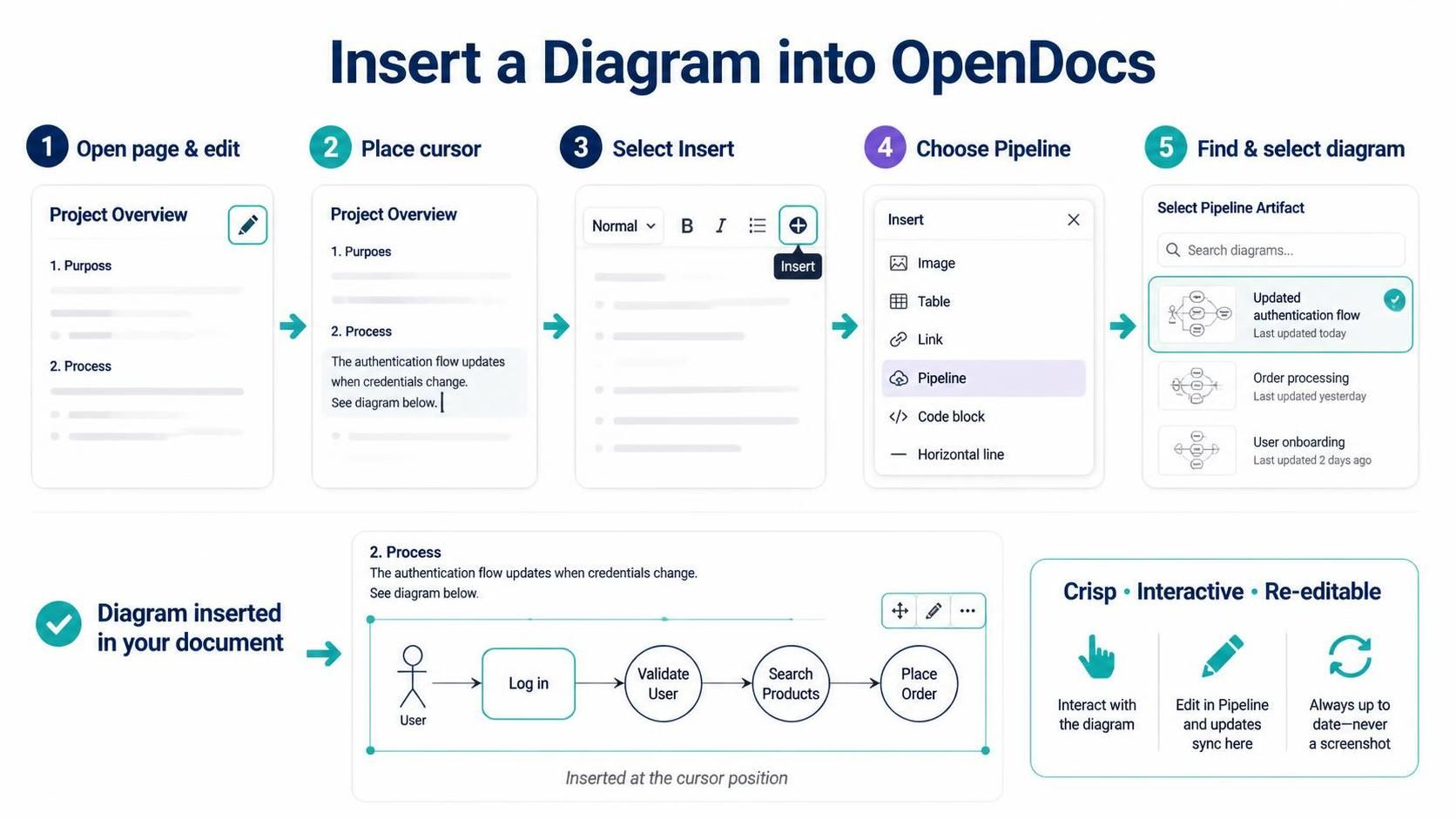
Visual Paradigm’s OpenDocs integration represents a significant leap forward in technical documentation. Unlike traditional documentation tools where diagrams are static, flattened images that require manual updates, OpenDocs allows you to embed live, interactive diagrams directly into your project documents. This capability ensures that your documentation remains synchronized with your actual system design, eliminating the common pitfall of “stale” diagrams.
This tutorial guides you through the architecture of embedding diagrams via the Pipeline artifact, ensuring your documentation is always crisp, interactive, and re-editable.
Understanding the Architecture: Live Artifacts vs. Static Images
When you insert a diagram into OpenDocs, you are not inserting a raster image (like a JPEG or PNG). Instead, you are embedding a Pipeline Artifact. This artifact acts as a live link to the diagram model within your Visual Paradigm project. The system architecture supports two-way synchronization:
- Dynamic Rendering: The diagram is rendered in real-time based on the latest model data.
- Bi-directional Editing: You can edit the diagram properties directly within the document interface, and those changes are saved back to the source model.
- Interactivity: The embedded object retains its interactive capabilities, allowing readers to zoom, pan, or explore relationships without leaving the document.
Step-by-Step: Inserting a Diagram via Pipeline
To successfully integrate a diagram into your documentation, follow this workflow to leverage the Pipeline feature effectively.
1. Preparation: Context and Placement
Before inserting the artifact, ensure you are in the correct context. Navigate to the specific OpenDocs page where the diagram belongs. Enter Edit Mode to unlock the editor toolbar. Position your text cursor exactly where the diagram should appear in the logical flow of the document.
2. Initiating the Insertion
Locate the Editor Toolbar. Look for the + or Insert button. Clicking this opens the insertion menu, which categorizes various elements you can add to your document.
[UI Interaction Flow]
User Action: Click "Insert" Button
   |
   v
Menu Opens: [Image, Table, Link, Pipeline, Code Block]
   |
   v
Selection: Choose "Pipeline"
3. Selecting the Artifact
Once you select Pipeline from the insertion window, a search interface appears. This is your gateway to your project’s diagrams. You will see a list of available artifacts, such as:
- Updated authentication flow
- Order processing
- User onboarding
Select the specific diagram you wish to embed. The system validates the selection, and the diagram is instantly inserted at your cursor position.
Benefits of the “Crisp and Interactive” Approach
The primary advantage of this method is the quality of the output. Because the diagram is rendered via code rather than a static image, it remains crisp at any resolution. Furthermore, the “Re-editable” nature means that if the business logic changes, you can update the diagram within the document, and the changes will propagate immediately. There is no need to export a screenshot, save it to a folder, and re-upload it.
Technical Implementation Details
For developers and architects managing this integration, it is crucial to understand how the data is referenced. The insertion process relies on the unique identifier (UUID) of the diagram within the project repository.
The underlying logic for the insertion command generally follows this structure:
// Conceptual Logic for Pipeline Insertion
function insertDiagram(pageContext, diagramUUID) {
    // 1. Validate User Permissions
    if (!userHasWriteAccess(pageContext)) {
        throw new Error("Edit Mode Required");
    }

    // 2. Retrieve Diagram Model Data
    const modelData = repository.fetchModel(diagramUUID);

    // 3. Render as Interactive Component
    const embeddedComponent = new PipelineArtifact(modelData);

    // 4. Inject into DOM at Cursor Position
    pageContext.insertAtCursor(embeddedComponent);

    return { status: "success", type: "interactive" };
}
Conclusion
By utilizing the Pipeline feature in OpenDocs, you transform your documentation from a static archive into a living, breathing extension of your design process. This ensures that your team always has access to the most accurate, high-resolution, and interactive representations of your system architecture.