
Mastering Domain-Specific Modeling with UML Profile Diagrams in Visual Paradigm
In the world of complex software engineering and system design, standard UML often falls short when trying to capture the nuances of a specific industry. Whether you are building automotive systems, healthcare applications, or aerospace controls, the generic “Class” or “Component” stereotypes often lack the semantic weight required for precise communication. This is where UML Profile Diagrams come into play.
This tutorial explores how to create and utilize custom modeling languages using Visual Paradigm. Based on the provided screenshot, we will dissect a Vehicle Stereotypes profile, demonstrating how to extend UML to create a domain-specific language (DSL) that is intuitive for stakeholders and precise for developers.
Understanding the UML Profile Concept
A UML Profile is a mechanism to customize UML without changing the core language. It allows architects to define new constructs—known as Stereotypes—that are semantically appropriate for a specific domain. In the context of our diagram, we are not just modeling “Classes”; we are modeling “Vehicles,” “Interiors,” and “Seats” with specific constraints and attributes.
By defining these elements visually, teams can avoid the ambiguity of generic diagrams. For instance, a standard UML class diagram might show a relationship between a Vehicle and a Seat, but a Profile Diagram explicitly defines the type of relationship (composition) and the specific attributes (like speed-limit or texture) that matter to the domain.
Analyzing the Vehicle Stereotypes Diagram
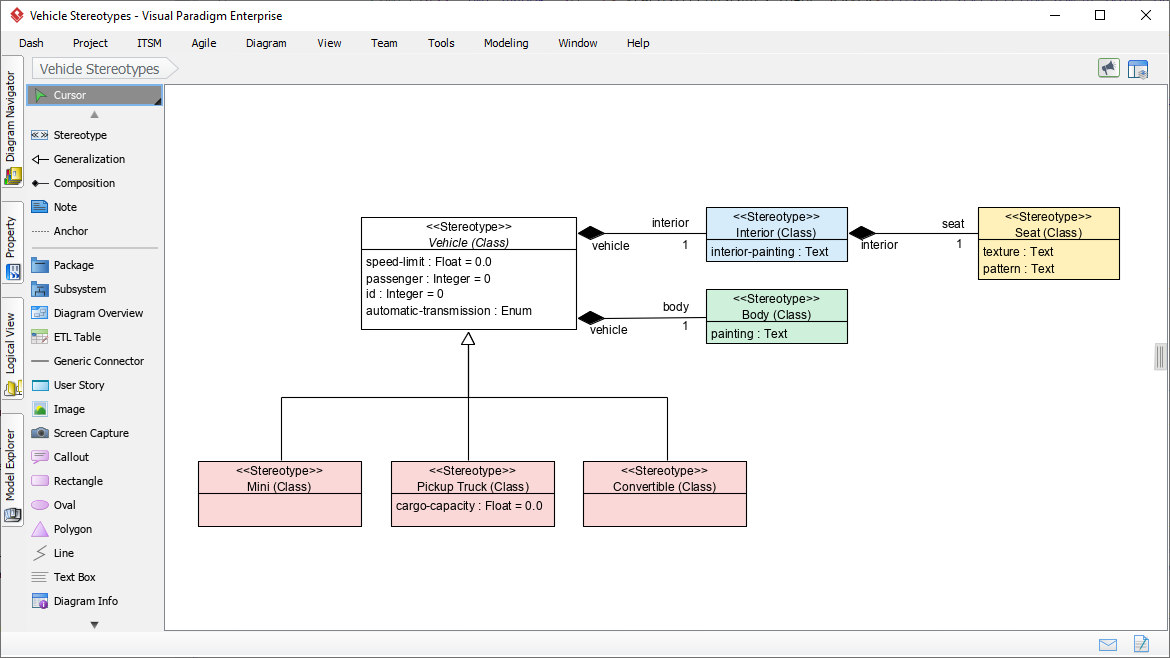
The diagram provided in the screenshot serves as a blueprint for a Vehicle domain. It establishes the vocabulary and structure for the rest of the project. Let’s break down the key architectural elements visible in the tool.
1. Defining Core Stereotypes
The central elements of this diagram are the boxes prefixed with <<Stereotype>>. Unlike standard classes, these are the definitions of the types that will be used throughout the project. The diagram defines four primary stereotypes:
- Vehicle (Class): The parent entity. It defines the fundamental properties of any vehicle, such as
speed-limit(Float),passenger(Integer), andid(Integer). - Interior (Class): Represents the internal components of the vehicle.
- Seat (Class): A specific component within the interior, with attributes like
textureandpattern. - Body (Class): Represents the external structure, featuring attributes like
painting.
2. Modeling Structural Relationships
The lines connecting these stereotypes define how the domain objects interact. The diagram utilizes two critical relationship types:
- Composition (Filled Diamond): The relationship between
VehicleandInterior, and betweenInteriorandSeatis a composition. This is visually represented by a filled black diamond. In UML, this signifies a “part-of” relationship where the child cannot exist independently of the parent. ASeatcannot exist without anInterior, and anInteriorcannot exist without aVehicle. - Generalization (Hollow Triangle): The diagram shows a strong inheritance hierarchy. The
Vehiclestereotype is the parent, and it generalizes into specific types:Mini,Pickup Truck, andConvertible. This allows the modeler to define common behaviors in the parent and specific overrides in the children.
3. Visual Consistency and Tooling
One of the primary benefits of using a Profile Diagram is visual standardization. Notice how each stereotype has a distinct background color (Blue for Interior, Yellow for Seat, Green for Body, Pink for Vehicle types) and a clear header format. This visual distinction aids rapid comprehension.
The screenshot shows the Diagram Navigator and Property panels of Visual Paradigm, indicating that these shapes are being drawn using specific “Model Explorer” tools. This ensures that when a developer drags a “Vehicle” onto a sequence diagram later, it carries all the attributes and logic defined here.
Step-by-Step: Creating Your Own Profile Diagram
To replicate this architecture in Visual Paradigm, follow these steps:
- Create the Profile: Navigate to Modeling → New Diagram → UML → Profile.
- Define Stereotypes: Drag the Stereotype icon from the toolbar onto the canvas. Double-click the box to rename it (e.g., “Vehicle”) and set its type to “Class” if it represents a class structure.
- Add Attributes: Expand the stereotype box to define properties. For example, add
speed-limit : Floatto the Vehicle stereotype. - Establish Inheritance: Use the Generalization tool (the line with the hollow triangle) to connect the child stereotypes (Mini, Pickup Truck) to the parent (Vehicle).
- Define Composition: Use the Composition tool (the filled diamond) to link the Vehicle to its parts (Interior, Body).
- Apply Formatting: Use the Style or Property panel to assign specific background colors and icons to differentiate the stereotypes visually.
Bridging the Gap Between Design and Implementation
The ultimate goal of this Profile Diagram is to serve as a contract between the system architect and the development team. By formalizing the Pickup Truck stereotype with a cargo-capacity attribute, the model ensures that the generated code or database schema will account for this specific data point.
Visual Paradigm’s support for these diagrams allows for a seamless transition from high-level domain modeling to detailed system design, ensuring that the “Vehicle” concept remains consistent from the initial concept to the final deployment.