
Build UML Use Case Diagrams with VPasCode & PlantUML
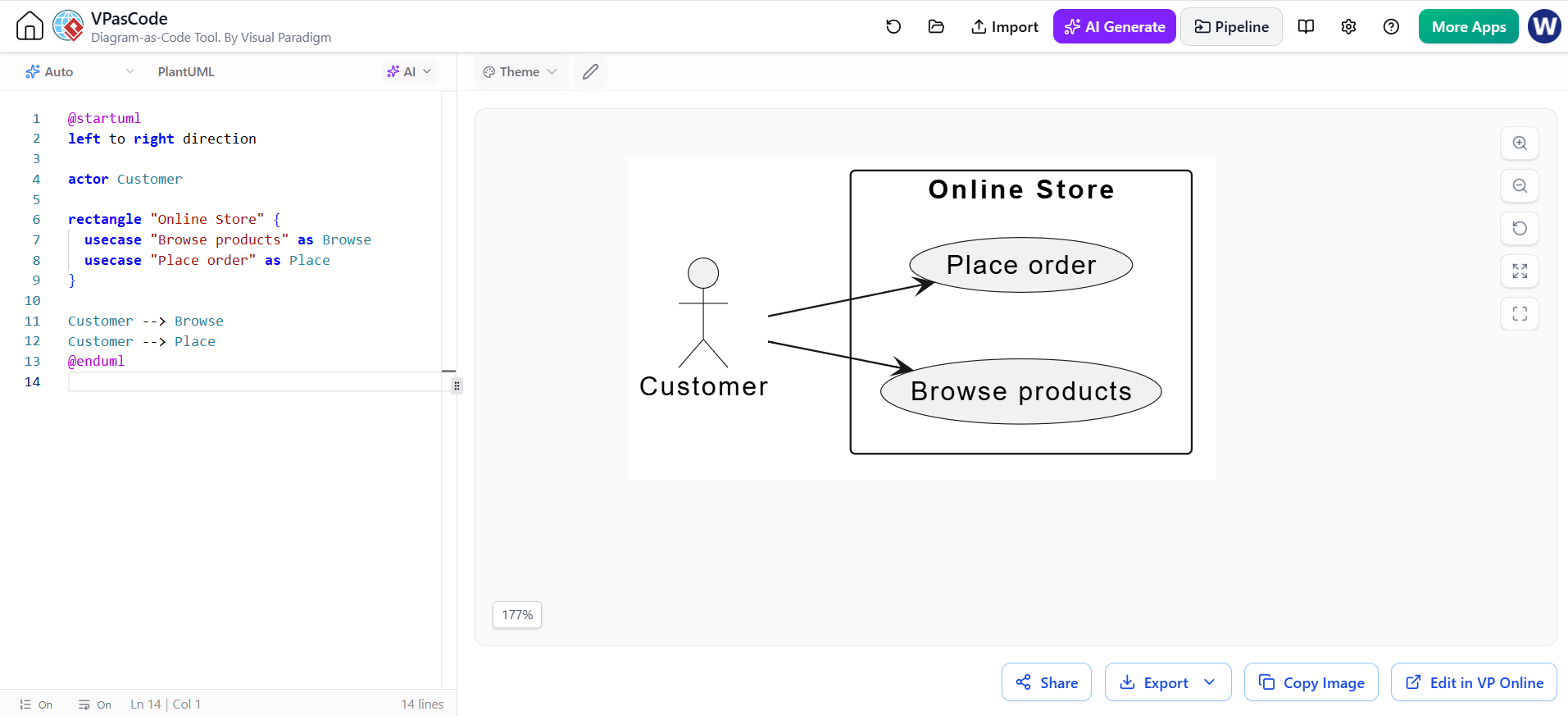
In the world of software engineering and system design, visualizing how users interact with a system is crucial. This tutorial explores how to create a foundational UML Use Case Diagram using the VPasCode editor in Visual Paradigm. We will dissect a specific PlantUML snippet that models a simple Online Store scenario, demonstrating how text-based coding can rapidly generate professional architectural diagrams.
Understanding the Core Concepts
A Use Case Diagram is a behavioral diagram that illustrates the functional requirements of a system. It focuses on the actors (users or external systems) and the use cases (actions or functions) they perform. In our context, we are defining the boundary of our system and mapping out the primary interactions a customer has with an online store.
The code provided utilizes PlantUML, a popular open-source tool that allows users to define diagrams via text. This approach is favored for its version control friendliness and rapid prototyping capabilities compared to dragging and dropping elements in a GUI.
Step 1: The Setup and Direction
Every PlantUML diagram requires a specific header to function. The snippet begins with
@startuml</code>, which signals the start of the diagram definition, and ends with <code>@enduml. Crucially, the line left to right direction instructs the rendering engine to lay out the diagram horizontally. This is often preferred for system context diagrams to allow for a logical flow from the actor on the left to the system on the right.
Step 2: Defining Actors
Actors represent the external entities interacting with the system. In the code, we see:
actor CustomerThis single line defines a stick figure labeled “Customer.” In a real-world scenario, you might define multiple actors, such as “Admin” or “Payment Gateway,” but here we focus on the primary user.
Step 3: System Boundaries
To distinguish between what is inside the system and what is outside, we use a System Boundary. This is represented by the rectangle keyword in PlantUML. The code groups specific elements inside this boundary:
rectangle "Online Store" {
  usecase "Browse products" as Browse
  usecase "Place order" as Place
}
The rectangle is named “Online Store,” creating a clear visual frame. Inside the curly braces { ... }, we define the internal logic of the system.
Step 4: Declaring Use Cases and Aliases
Use cases are the specific actions the system performs. The syntax usecase "Description" as Alias is key here. It creates an oval shape with the text “Description” and assigns it a short, code-friendly name (Alias) for use in relationship definitions later.
usecase "Browse products" as Browse: Defines the ability to view items.usecase "Place order" as Place: Defines the ability to finalize a purchase.
Step 5: Establishing Relationships
Finally, we connect the actor to the system functions. This is done using arrows. The code uses the double arrow --> to denote a directed relationship (interaction).
Customer --> Browse
Customer --> Place
This indicates that the Customer initiates both the Browse and Place actions. In UML terms, this is an Association.
Complete Source Code
Here is the complete code block as seen in the VPasCode editor, ready to be rendered:
@startuml
left to right direction

actor Customer

rectangle "Online Store" {
  usecase "Browse products" as Browse
  usecase "Place order" as Place
}

Customer --> Browse
Customer --> Place
@endumlConclusion
By using VPasCode, developers can maintain their design specifications as code. This allows for easy integration into CI/CD pipelines and simplifies collaboration among team members who prefer text editing over graphical interfaces. The resulting diagram provides a clear, high-level view of the system’s scope and user interactions.