
Mastering Visual Paradigm OpenDocs: Tabbed Folders for Seamless Documentation
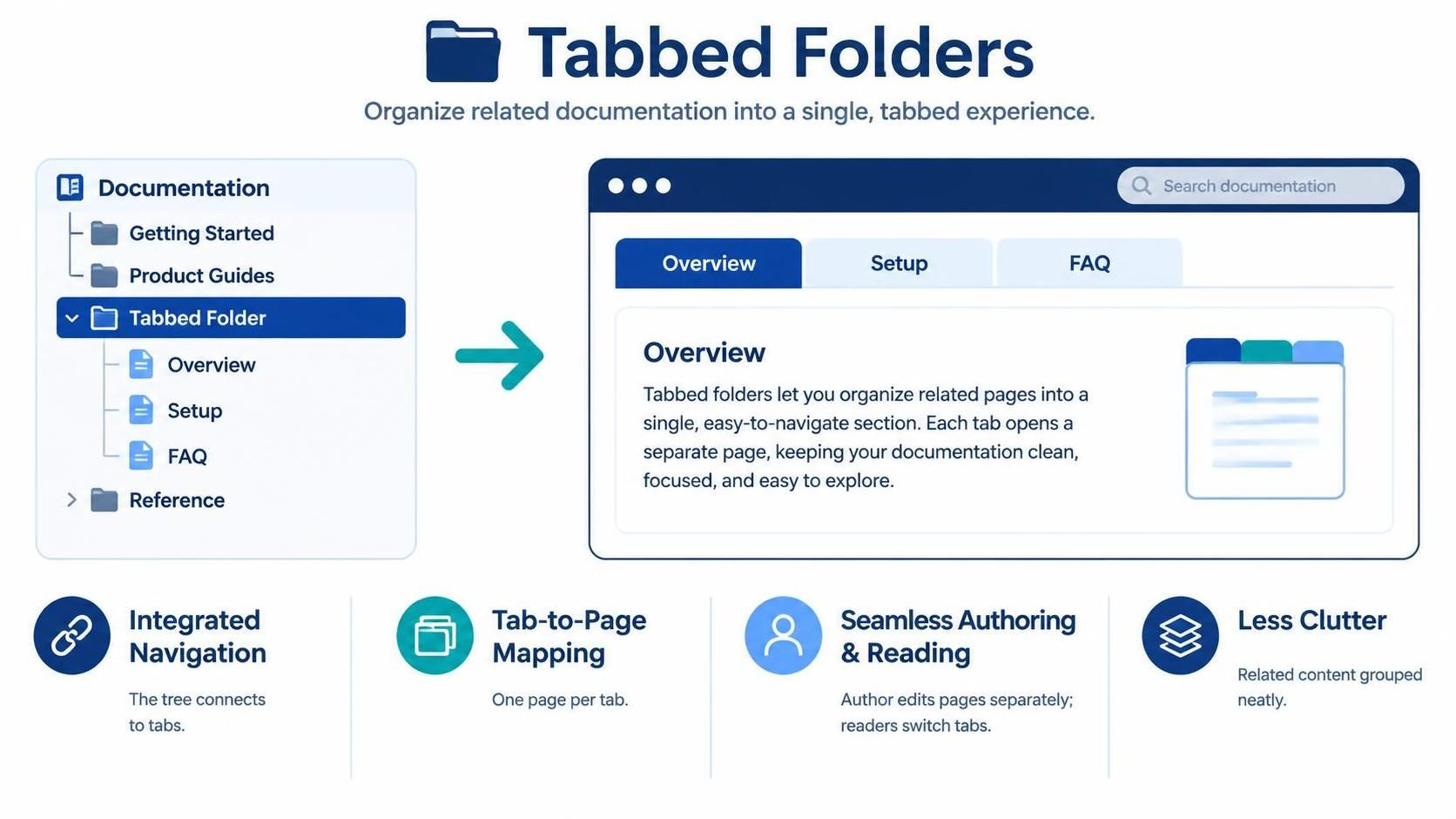
In the world of technical writing and documentation management, the struggle is often one of balance: how to maintain a rigorous, hierarchical file structure for authors while providing a fluid, intuitive browsing experience for readers. Visual Paradigm OpenDocs solves this dichotomy through a powerful feature known as Tabbed Folders.
This tutorial explores the architecture, modeling concepts, and implementation strategies of Tabbed Folders. We will move from the theoretical integration of page trees to the practical steps of configuring this feature within the OpenDocs environment.
1. The Architecture of Tabbed Folders
The core philosophy behind Tabbed Folders is the decoupling of storage structure from presentation view. In traditional file systems, a folder is simply a container that hides its contents until clicked. In OpenDocs, a Tabbed Folder acts as a View Controller. It takes a collection of child pages and renders them not as a nested list, but as a horizontal navigation bar (tabs).
Integrated Page Tree Navigation
The system relies on a direct mapping between the hierarchical page tree and the user interface. Instead of forcing a user to click into a “Product Guides” folder, then click into a “Setup” sub-folder, and finally click a file to read, the Tabbed Folder renders the entire depth of the folder structure as a single interactive component.
- Reader Perspective: The user sees a unified interface with tabs like “Overview,” “Setup,” and “FAQ.” Clicking a tab swaps the content instantly without reloading the page or navigating to a new URL.
- Author Perspective: The underlying structure remains a standard file system. You still see a “Tabbed Folder” in your sidebar, containing standard sub-pages.
Tab-to-Page Mapping
Perhaps the most critical architectural concept is the One-to-One Mapping. Every tab visible to the end-user corresponds to exactly one page in the documentation hierarchy.
- The Container: The Tabbed Folder itself is a logical grouping entity.
- The Content Source: The child pages (e.g.,
Overview,Setup) are the actual content repositories. - The Rendering: The title of the child page automatically becomes the label of the tab.
2. The Dual Nature: Seamless Authoring and Reading
One of the primary goals of this feature is to eliminate the friction between content creation and consumption. Many documentation tools require complex inline editors or “macro” systems to create tabs. OpenDocs avoids this by utilizing standard page management.
For the Author
Authors work in the familiar “Page Tree” view. If you need to update the “Troubleshooting” section, you simply edit the Troubleshooting page. You do not need to edit the tab configuration itself. The system automatically picks up the changes and updates the corresponding tab.
For the Reader
Readers benefit from “Context Preservation.” When a user switches from “Overview” to “API Reference,” they remain within the context of the parent topic. This reduces cognitive load and prevents users from getting lost in deep directory structures.
3. Clutter Reduction and Information Architecture
From an Information Architecture (IA) standpoint, Tabbed Folders are a tool for Visual Consolidation. Without this feature, a complex topic with five different aspects (e.g., Installation, Configuration, Usage, Maintenance, API) would require a sidebar with five distinct links.
By grouping these into a Tabbed Folder, you reduce the sidebar to a single clickable item. This keeps the navigation pane clean and focuses the user’s attention on the specific content rather than the structure of the menu.
4. Implementation Guide: Setting Up Tabbed Folders
Ready to implement this architecture in your project? Follow this step-by-step workflow to configure Tabbed Folders in Visual Paradigm OpenDocs.
Step 1: Create the Container (Parent Folder)
Navigate to your OpenDocs project’s page tree. You will need a folder to act as the container for your tabs. Let’s name this “Advanced Analytics Module”.
Step 2: Add Child Pages (The Content)
Create individual pages inside this new folder. These pages represent the content for each tab. Based on the “Advanced Analytics” example, you should create the following child pages:
Overview: High-level description and benefits.Setup Guide: Step-by-step instructions for enabling the feature.User Interface: Screenshots and explanations of UI elements.API Endpoints: Technical details for developers.FAQ: Common questions and troubleshooting tips.
Step 3: Enable Tabbed Folder Mode
This is the crucial transformation step. You must switch the folder’s rendering mode from a standard directory to a tabbed component.
- Select the parent folder (e.g., “Advanced Analytics Module”) in the page tree.
- Locate the Folder Properties or settings menu.
- Find the option labeled Tabbed Folder and enable it.
- Save your changes.
Step 4: Preview and Validate
Once enabled, the folder will transform. Use the preview mode to verify the experience. You should see a navigation bar with tabs for “Overview,” “Setup Guide,” “User Interface,” etc. Click through them to ensure the content loads correctly and the transitions are smooth.
5. Practical Use Cases
While the setup is straightforward, the application of Tabbed Folders varies widely. Here are three scenarios where this architecture shines.
Scenario A: Product Feature Documentation
When documenting a complex software feature, users often need to switch between conceptual understanding and technical reference. A Tabbed Folder allows you to house “Overview,” “API Reference,” and “Troubleshooting” in one place. This prevents the “link rot” scenario where a user gets lost after clicking a link to a standalone API page.
Scenario B: Onboarding Workflows
Onboarding new team members is a process, not a single document. By creating a “New Hire Onboarding” Tabbed Folder, you can organize distinct areas like “Welcome & Culture,” “Tools & Access,” and “First Week Tasks.” This allows new hires to explore different aspects of the workflow at their own pace without feeling overwhelmed by a massive single document.
Scenario C: API Documentation
For RESTful APIs, developers need quick access to specific endpoints. Instead of a monolithic document containing Authentication, Create User, Update User, and Delete User, a Tabbed Folder groups these logically. The developer can click “Create User” to see the request/response examples immediately, without scrolling past irrelevant sections.
Conclusion
Tabbed Folders in Visual Paradigm OpenDocs represent a sophisticated approach to documentation management. They bridge the gap between the rigid hierarchy required for content organization and the fluid navigation required for user engagement. By mastering this feature, you can build documentation suites that are not only easier to maintain but also significantly more enjoyable to read.