
Mastering UML Use Cases with Visual Paradigm’s Contextual Notes Editor
In the realm of software engineering and system analysis, the gap between high-level requirements and concrete implementation is often bridged by detailed modeling. One of the most critical artifacts in this process is the Use Case. While traditional use case templates focus on preconditions, postconditions, and basic flows, modern tools like Visual Paradigm offer a more dynamic approach: the Use Case Notes Editor.
This tutorial explores how to leverage the Use Case Notes Editor to capture, organize, and transform raw stakeholder requirements into structured system logic. We will walk through the interface, the hierarchical organization of ideas, and how to convert unstructured brainstorming into actionable event flows.
Understanding the Contextual Notes Editor
The Use Case Notes Editor serves as a flexible workspace within Visual Paradigm’s UML Use Case tooling. Unlike rigid templates that force you to fit thoughts into predefined boxes, the Notes editor allows for a “Use Case Centric” approach to managing user needs. It is designed specifically for the phases of discussion, brainstorming, and requirement gathering with stakeholders.
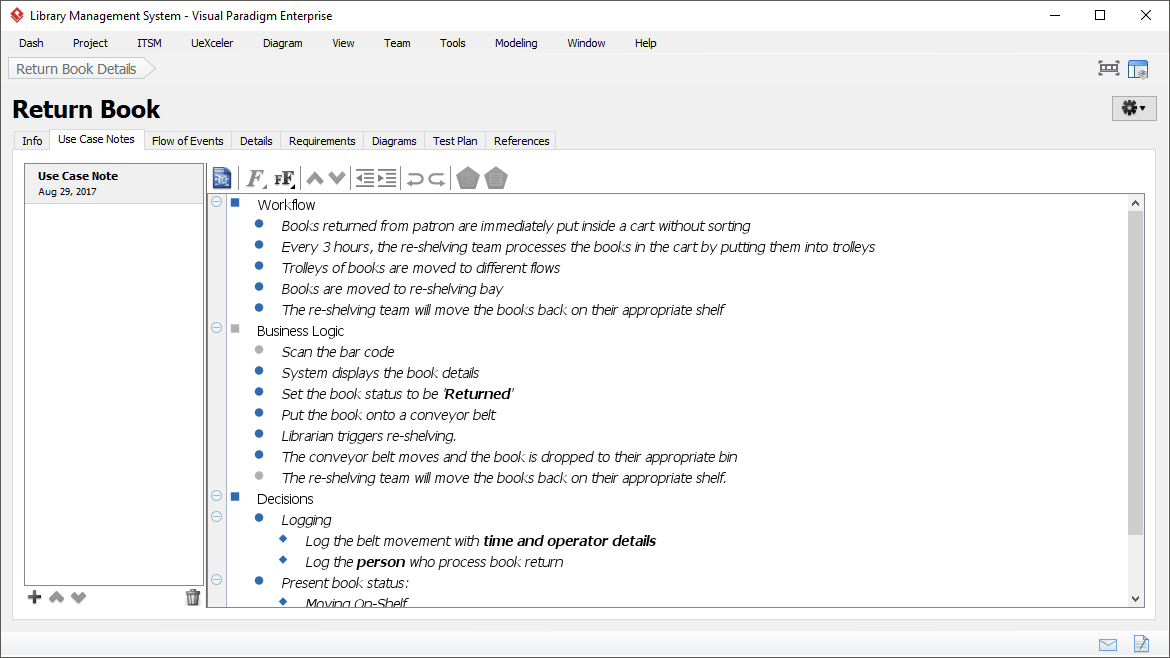
When you open a Use Case—such as the “Return Book” scenario shown in the interface—you gain access to a rich text environment. This environment supports:
- Hierarchical Organization: Grouping ideas into logical buckets like Workflow, Business Logic, and Decisions.
- Rich Formatting: Using bold, italic, and list styles to emphasize key data points.
- Flexible Input: Capturing suggestions, concerns, and technical constraints in a free-form manner.
Structuring Your Requirements: A Step-by-Step Guide
To effectively model a system, you must first organize your thoughts. The screenshot of the “Return Book” use case demonstrates a powerful method for categorizing information. Let’s break down the structure used in this example.
1. Categorizing by Domain
Effective modeling requires distinguishing between how the user interacts with the system (Workflow) and the internal rules the system enforces (Business Logic). The Notes Editor allows you to create collapsible sections to separate these concerns.
- Workflow Section: This typically describes the physical or high-level process. In our example, the notes describe the physical movement of books:
- Books returned are put in a cart without sorting.
- Every 3 hours, a team processes the cart.
- Books are moved to a re-shelving bay.
- Business Logic Section: This defines the specific rules and system actions.
- Scan the bar code.
- The system must display book details.
- The status must be set to ‘Returned’.
2. Managing Decisions and State
Complex systems often involve branching logic or specific data logging requirements. The “Decisions” section in the notes editor allows you to capture these nuances. Notice how the example breaks down the logging requirement:
Decisions
  - Logging
    - Log the belt movement with time and operator details
    - Log the person who process book return
This hierarchical indentation is crucial. It tells the analyst that “Logging” is a decision point, and the specific attributes (time, operator, person) are sub-requirements of that decision.
From Notes to Event Flows
The true power of the Visual Paradigm Notes Editor lies in its ability to act as a bridge to formal modeling. Once you have captured your requirements in the notes, you do not need to manually re-type them into a Sequence Diagram or an Activity Diagram.
The editor allows you to generate event flows selectively from note items. This feature automates the transition from brainstorming to formal specification. For instance, you can select the specific bullet points under “Business Logic” and instruct the tool to generate a sequence of events that dictates the system’s reaction to the user’s input.
Formatting for Clarity
As you can see in the screenshot, formatting plays a vital role in communication. The use of bold for “Returned” and italic for specific nouns helps differentiate data fields from action verbs. This visual distinction makes the requirements easier for stakeholders to review and for developers to implement.
Conclusion
The Use Case Notes Editor in Visual Paradigm transforms the documentation process from a static record-keeping exercise into an active analysis tool. By organizing notes into logical hierarchies (Workflow vs. Logic) and utilizing rich formatting, analysts can capture the full scope of stakeholder requirements. This structured approach ensures that when you move to the implementation phase, your system architecture is built on a foundation of clear, verified, and organized business logic.